In this guide, you'll learn how to connect Apiframe to n8n so you can generate AI images (or videos, music, and more) from any workflow. If you're still comparing image models and providers, our AI image API guide covers the wider landscape.
We'll cover:
- What we're building
- Prerequisites
- Creating Apiframe credentials in n8n
- Workflow 1: simple image generation using
/v2/images/generate - Workflow 2: checking results with
/v2/jobs - Workflow 3 (recommended): using webhooks for real-time results
- Extending the pattern to other Apiframe endpoints
All examples use Midjourney through the /v2/images/generate endpoint, but the same pattern works for most of the other endpoints and models.
I. What we're going to build
We’ll build two small n8n integrations:
- Generate an image on demand
- Trigger: Manual, Webhook, Google Sheet, anything
- HTTP Request:
POST https://api.apiframe.ai/v2/images/generate - Get back a
jobIdthat you can store or log
- Get the final images automatically
- By polling Apiframe with GET /v2/jobs/{jobId} until the job is complete
- Or (recommended) let Apiframe call n8n Webhook when the job is complete
Once the image URLs land in n8n, you can do anything: send them to Slack, store them in Airtable, Google Drive, etc.
II. Prerequisites
You will need:
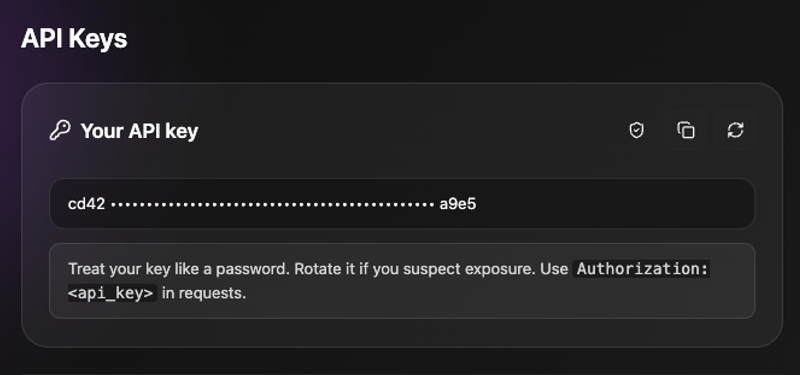
- An Apiframe account and an API key. You can grab this from your API keys page in the dashboard. Your key starts with afk_ and it authenticates every request through the
X-API-Keyheader. If this is your first time calling the API, run through Getting Started with Apiframe first.
- An n8n instance (self-hosted or cloud)
- Basic familiarity with n8n nodes (HTTP Request, Webhook, Set, IF, etc.). The HTTP Request node is how n8n calls any REST API.
III. Create Apiframe credentials in n8n
We’ll configure credentials once, then reuse them in all HTTP Request nodes.
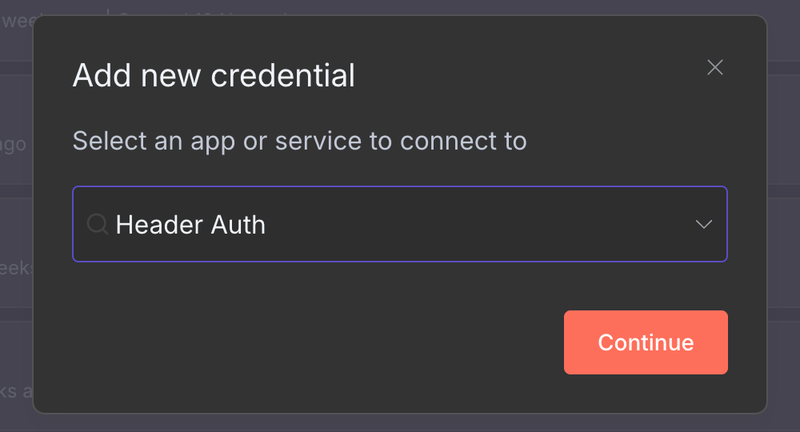
- Step 1: In n8n, go to Credentials → Create credential.

- Step 2: Choose Header Auth (or "HTTP Header Auth", "API Key in Header" depending on your version)
- Step 3: Configure:
- Header name:
X-API-Key - Value: your Apiframe API key, exactly as shown in your dashboard (it begins with afk_)
- Header name:
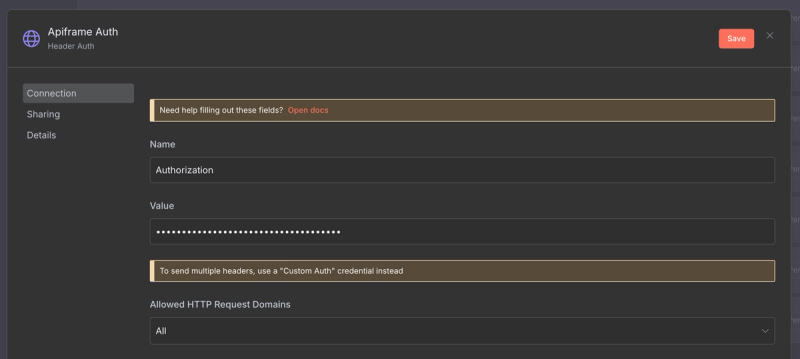
- Step 4: Give it a name like Apiframe Auth and save
Apiframe expects:
X-API-Key: afk_your_api_key_here
Content-Type: application/json
IV. Workflow 1 - Basic image generation with /v2/images/generate
We’ll build a simple workflow:
1. Create the workflow
- In n8n, create a New workflow.
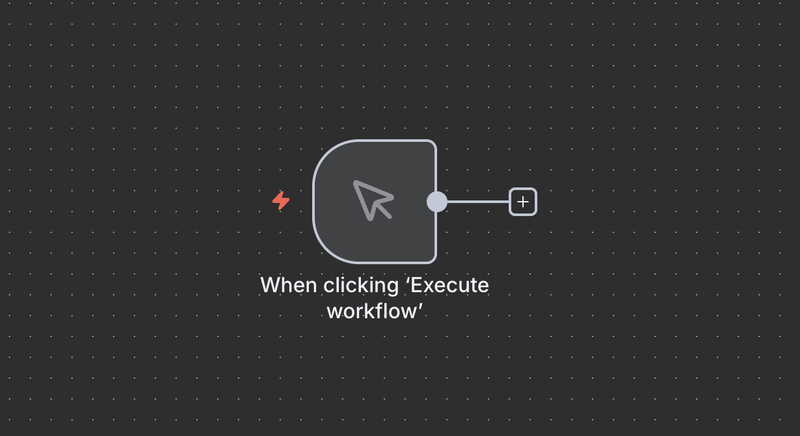
- Add a Manual Trigger node.
2. Add a "Set" node for the prompt
- Add a Set node after the Manual Trigger.
- In Values → Add Field → String:
- Name:
prompt - Value: something like
a cinematic photo of a cyberpunk city at night, ultra detailed, 4k. For stronger results, borrow the structure from The Complete Midjourney Prompt Guide.
- Name:
- (Optional) Add another string field:
- Name:
aspect_ratio - Value:
3:2
- Name:
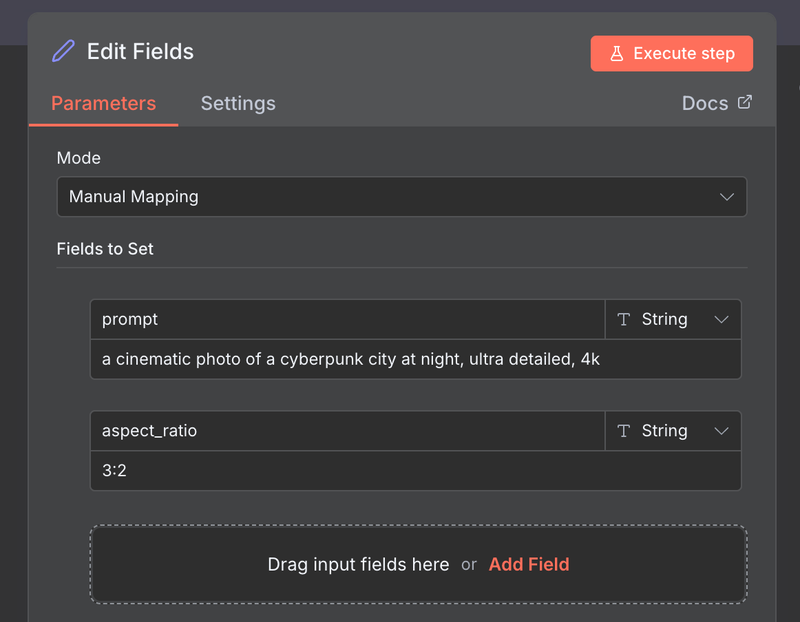
Now the Set node’s output JSON looks roughly like:
{
  "prompt": "a cinematic photo of a cyberpunk city at night, ultra detailed, 4k",
  "aspect_ratio": "3:2"
}
3. Add the HTTP Request node for /v2/images/generate
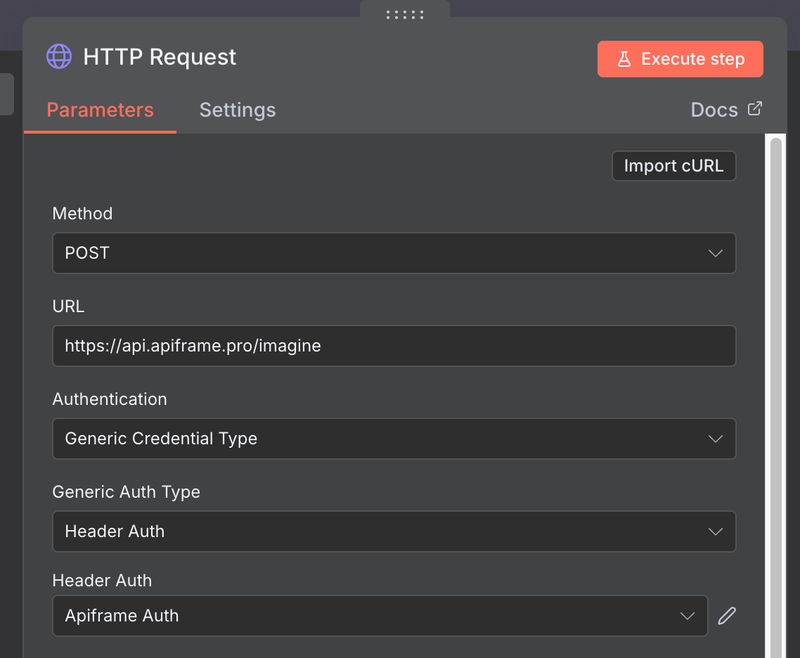
- Add an HTTP Request node after the Set node.
- Configure:
- Method:
POST - URL:
https://api.apiframe.ai/v2/images/generate
- Method:
For authentication, choose "Generic Credential type," then "Header Auth," then the "Apiframe Auth" credentials you created earlier.
For the body, turn on "Send body," and add your fields: prompt, model (set it to midjourney), a midjourneyParams object holding aspect_ratio, and optionally webhookUrl and webhookEvents for later.
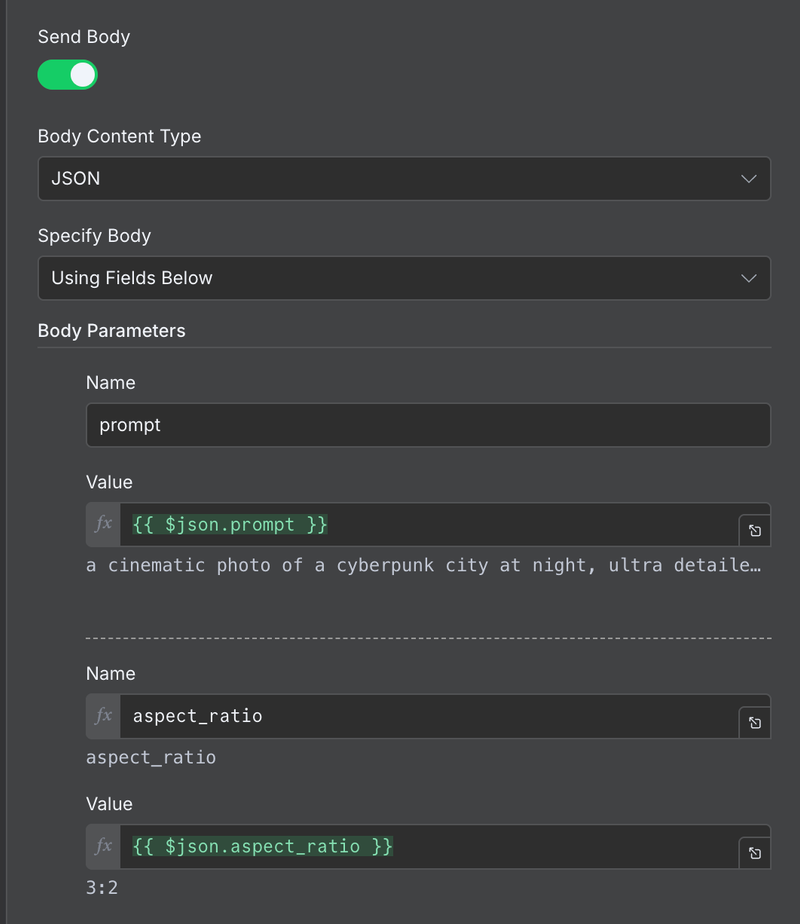
When you execute this node, Apiframe returns something like:
{
  "jobId": "a1b2c3d4-e5f6-7890-abcd-ef1234567890",
  "status": "QUEUED"
}
This means the task is queued/processing. Images are generated asynchronously; you don’t get the final URLs from /v2/images/generate itself.
You can now:
- Log the
jobId - Store it in a DB / Google Sheet
- Pass it forward to a job-polling workflow
V. Workflow 2 - Polling Apiframe with /v2/jobs
Now let’s get the actual image URLs using the /v2/jobs endpoint.
Apiframe exposes a GET https://api.apiframe.ai/v2/jobs/{jobId} endpoint. Pass the jobId in the URL path and it returns the current state of the job. A job moves through four statuses: QUEUED, PROCESSING, COMPLETED, and FAILED. The image URLs only appear once the status is COMPLETED.
We’ll do a minimal “Wait then Poll” flow.
1. Add a Wait node
After the /v2/images/generate HTTP Request node:
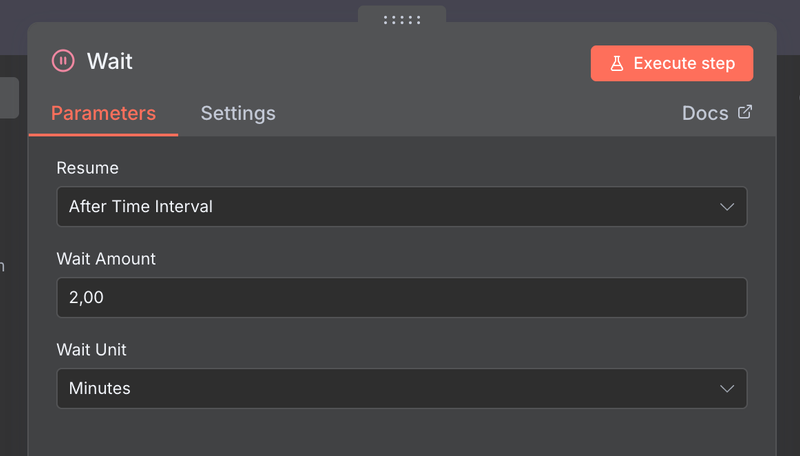
- Add a Wait node.
- Set it to wait, for example, 30 seconds.
A Midjourney generation usually takes 30 to 60 seconds, and busy periods can take longer. A short wait will almost always come back as QUEUED or PROCESSING, so plan on polling more than once.
2. Add the job-polling HTTP Request node
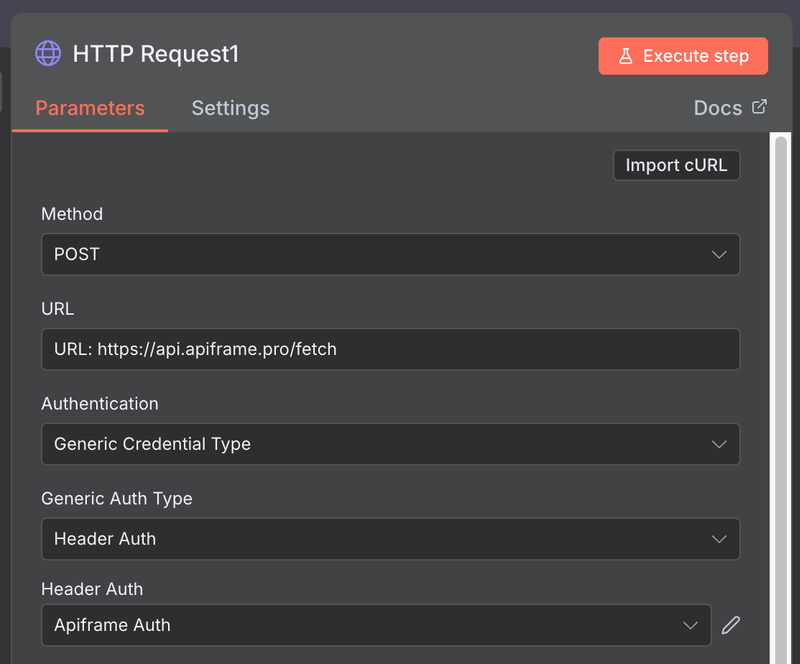
Add another HTTP Request node after the Wait node:
- Method:
GET - URL:
https://api.apiframe.ai/v2/jobs/{{ $json.jobId }} - For authentication, choose the "Generic Credential type", then "Header Auth", then the “Apiframe Auth”, like before.
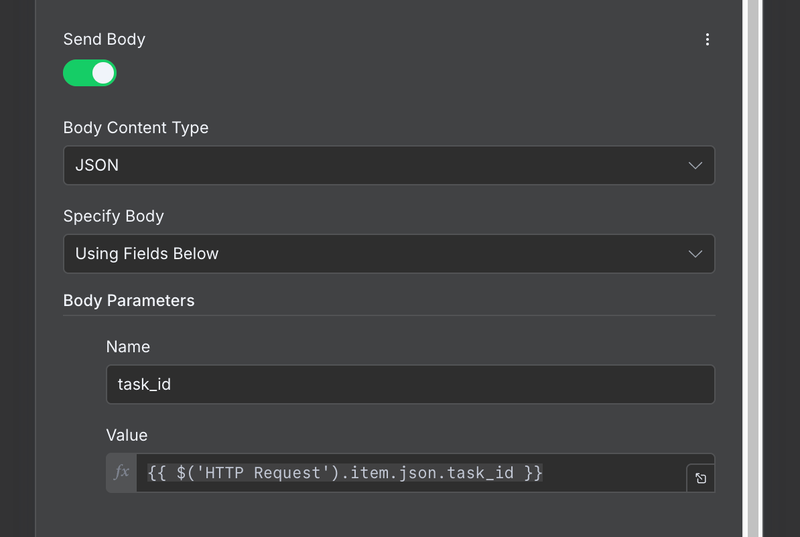
- No body is needed here. The job ID travels in the URL path, so leave "Send body" off and just reference the
jobIdreturned by the previous node
Processing (job still running):
{
  "jobId": "a1b2c3d4-e5f6-7890-abcd-ef1234567890",
  "status": "PROCESSING",
  "model": "midjourney",
  "progress": 40
}
Completed (job done, image URLs ready):
{
  "jobId": "a1b2c3d4-e5f6-7890-abcd-ef1234567890",
  "status": "COMPLETED",
  "model": "midjourney",
  "creditCost": 10,
  "result": {
    "images": [
      "https://cdn2.apiframe.ai/images/a1b2c3d4-1.png",
      "https://cdn2.apiframe.ai/images/a1b2c3d4-2.png",
      "https://cdn2.apiframe.ai/images/a1b2c3d4-3.png",
      "https://cdn2.apiframe.ai/images/a1b2c3d4-4.png"
    ],
    "gridUrl": "https://cdn2.apiframe.ai/images/a1b2c3d4-grid.png"
  }
}
3. Handling “still processing”
For a quick dev setup, you can:
- Just wait longer and poll once.
- Or add a simple IF node after the poll:
- Condition:
statusis still"QUEUED" or "PROCESSING" - If “true”: branch to another Wait + Poll
- If “false”: continue with your final logic (Slack, Airtable, etc.)
- Condition:
In production, Apiframe recommends using webhooks instead of polling to avoid unnecessary requests and get instant updates.
Let’s do that next.
VI. Workflow 3 - Webhook-based results (recommended)
This is the cleaner setup, and results arrive the moment they are ready:
- Workflow A: Send generation request (with
webhookUrlandwebhookEvents) - Workflow B: Receive webhook from Apiframe when generation is done
1. Create Workflow B - The webhook receiver
- Create a New workflow in n8n and name it
Apiframe Image Completed. - Add a Webhook node.
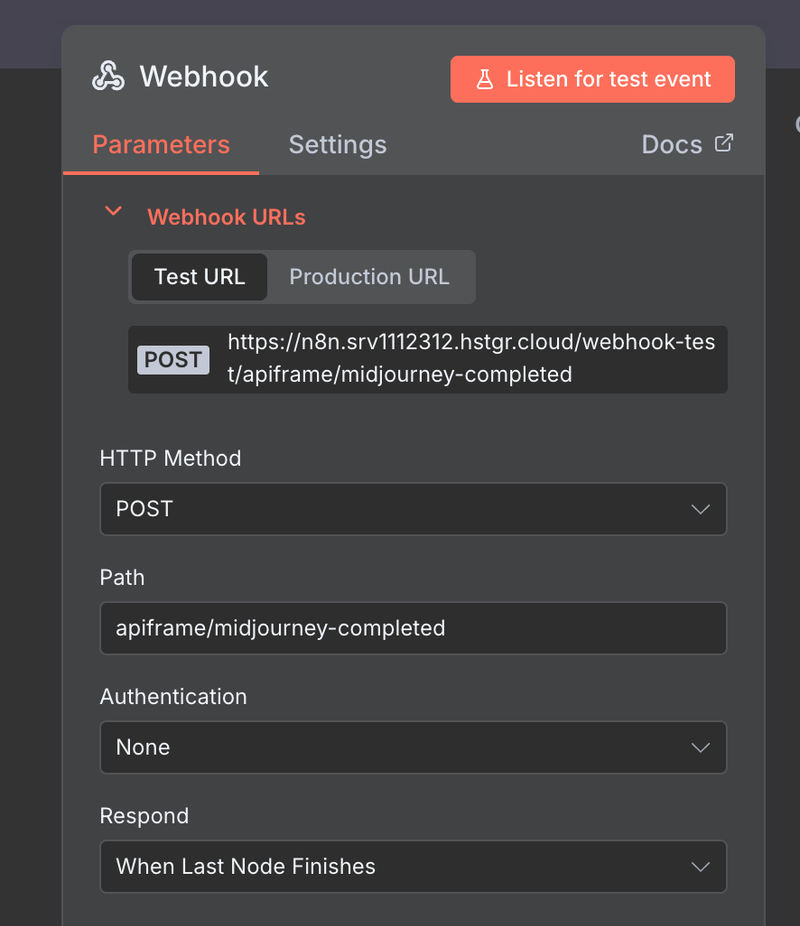
Configure the Webhook node:
- HTTP Method:
POST - Path: something like
apiframe/midjourney-completed - Response mode:
- For example,
When Last Node Finishes(so you can return data back if you want).
- For example,
- HTTP Method:
Copy the Production URL. This is what you will set as webhookUrl in Apiframe.
2. Verify the webhook signature
Apiframe signs every webhook call. Each request arrives with an X-Webhook-Signature header, which is a fingerprint of the exact request body, and an X-Webhook-Event header naming the event (completed, failed, or progress). The signing secret is not your API key. It's the SHA-256 hash of your API key, written as a hex string, and the signature itself is prefixed with sha256=. Signature checks are one of several habits worth adopting; see our AI Media API Security Best Practices guide.
- Add a Code node after the Webhook node (an IF node can't compute an HMAC).
- In the Code node, recompute the signature over the raw body and compare it against the header:
const crypto = require('crypto');

// The signing secret is the SHA-256 hash of your API key, as a hex string.
const signingSecret = crypto
  .createHash('sha256')
  .update('afk_your_api_key_here')
  .digest('hex');

// Requires "Raw Body" enabled on the Webhook node.
const raw = $json.rawBody ?? JSON.stringify($json.body);

const expected =
  'sha256=' +
  crypto.createHmac('sha256', signingSecret).update(raw).digest('hex');

const received = $json.headers['x-webhook-signature'] ?? '';

const a = Buffer.from(expected);
const b = Buffer.from(received);

if (a.length !== b.length || !crypto.timingSafeEqual(a, b)) {
  throw new Error('Invalid webhook signature');
}

return $input.all();- Turn on "Raw Body" in the Webhook node, so you hash the exact bytes Apiframe signed rather than a re-serialized copy.
- Store the API key in an n8n credential or environment variable rather than pasting it into the Code node.
- Compare the two values with
crypto.timingSafeEqualinstead of ===. A plain comparison finishes faster on an early mismatch, which can leak clues about the real signature. - If the signature doesn’t match, throw (as above) or route to a branch that just ends and logs the attempt.
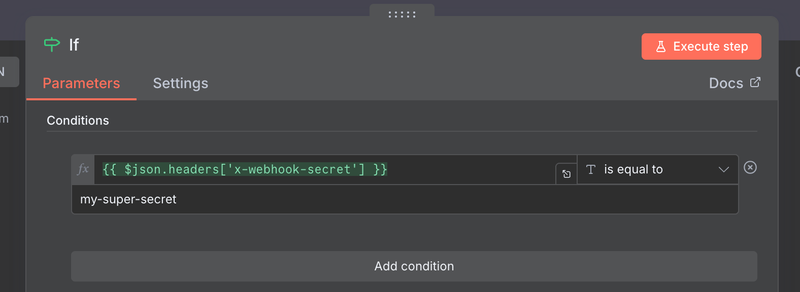
This ensures only Apiframe’s webhooks are processed.
3. Accessing the image URLs in the webhook payload
The webhook body wraps the same result object shown earlier, alongside the event name and job metadata:
{
  "event": "completed",
  "jobId": "a1b2c3d4-e5f6-7890-abcd-ef1234567890",
  "status": "COMPLETED",
  "progress": 100,
  "model": "midjourney",
  "creditCost": 10,
  "completedAt": "2026-08-17T09:14:22.000Z",
  "result": {
    "images": [
      "https://cdn2.apiframe.ai/images/a1b2c3d4-1.png",
      "https://cdn2.apiframe.ai/images/a1b2c3d4-2.png",
      "https://cdn2.apiframe.ai/images/a1b2c3d4-3.png",
      "https://cdn2.apiframe.ai/images/a1b2c3d4-4.png"
    ],
    "gridUrl": "https://cdn2.apiframe.ai/images/a1b2c3d4-grid.png"
  }
}
You can access the image URLs, then pass them into:
- Slack node (send a message with the URL)
- Airtable / Notion (store the URL)
- HTTP Request (push to your app’s backend)
4. Update Workflow A to use the webhook
Return to Workflow A (the one calling /v2/images/generate) and edit the HTTP Request node body to include:
webhookUrlwebhookEvents
The available events are progress, completed, and failed. If you set webhookUrl and leave webhookEvents out, Apiframe defaults to completed and failed.
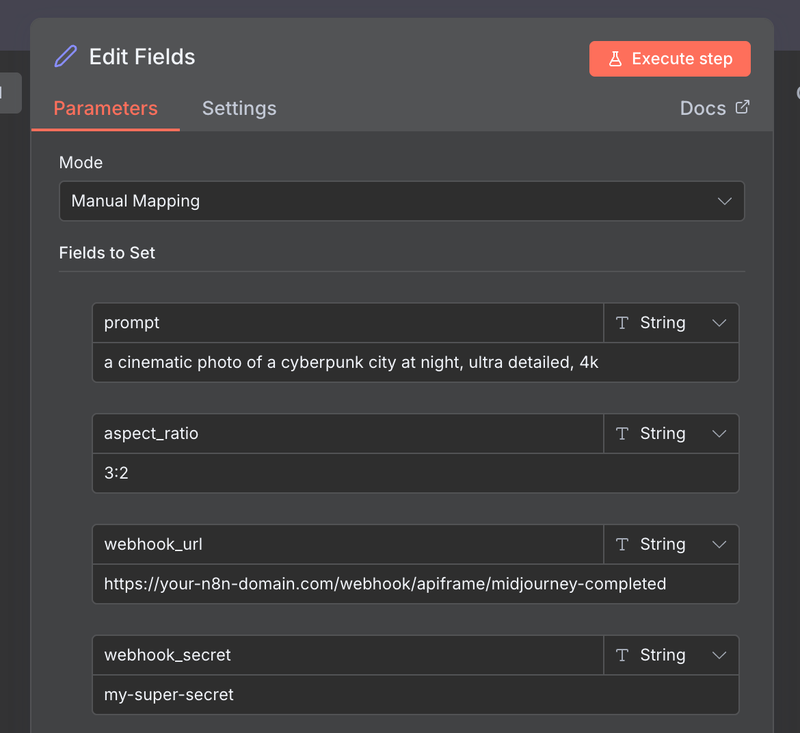
Example JSON body in the HTTP Request node:
{
  "prompt": "a cinematic photo of a cyberpunk city at night, ultra detailed, 4k",
  "model": "midjourney",
  "midjourneyParams": {
    "aspect_ratio": "3:2"
  },
  "webhookUrl": "https://your-n8n-domain.com/webhook/apiframe/midjourney-completed",
  "webhookEvents": ["completed", "failed"]
}
Now the flow is:
- Workflow A →
/v2/images/generatewithwebhookUrl+webhookEvents - Apiframe generates the image in the background
- When done, Apiframe calls your Webhook (Workflow B) with the final URLs
- Workflow B processes them and pushes them wherever you want
No polling and no wasted requests. Apiframe tells n8n the moment the job is done.
VII. Extending this pattern to other Apiframe endpoints
Once n8n and Apiframe are connected, the same three steps work for every other endpoint: send a request, get a jobId, then check or wait for a webhook.
Some ideas:
- Follow-up actions:
POST https://api.apiframe.ai/v2/images/midjourney/action, sending the completed job'sparentJobIdplus an action (upsample, variation, inpaint, outpaint, or pan). These act on a finished generation instead of a new prompt. - Upscaling:
POST https://api.apiframe.ai/v2/images/upscalewith the image you want enlarged. - Background removal:
POST https://api.apiframe.ai/v2/images/background-remove. - Image editing:
POST https://api.apiframe.ai/v2/images/editfor fill and inpaint style edits. - Other media: Flux, Ideogram, Luma, and Suno all follow the same REST pattern. POST to
/v2/images/generate,/v2/videos/generate, or/v2/music/generatewith JSON, includingwebhookUrlandwebhookEventsif you want webhooks. - Video: the same three steps work for video. Send a POST to
/v2/videos/generate, then poll or wait for the webhook. The AI Video Generation API guide walks through the model choices.
Each of these becomes just another HTTP Request node (or two, if you also poll /v2/jobs) using the same “Apiframe Auth” credentials.
VIII. Wrap-up
You now have:
- A basic
/v2/images/generateworkflow to trigger Midjourney via Apiframe in n8n - A polling setup using
/v2/jobsfor quick experiments - A webhook setup for live production workflows
Prefer a different automation tool? The same setup works in Make.com.